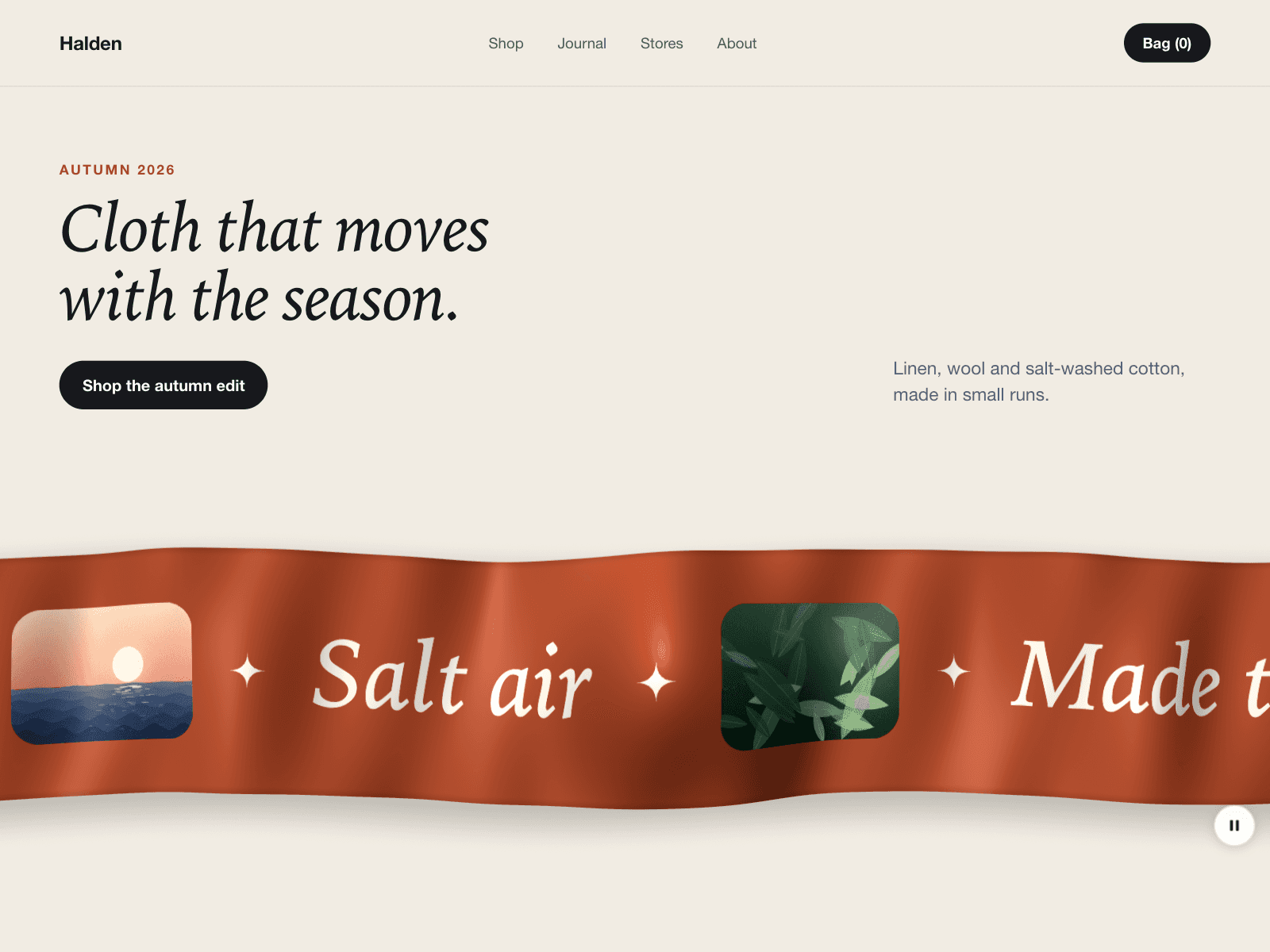
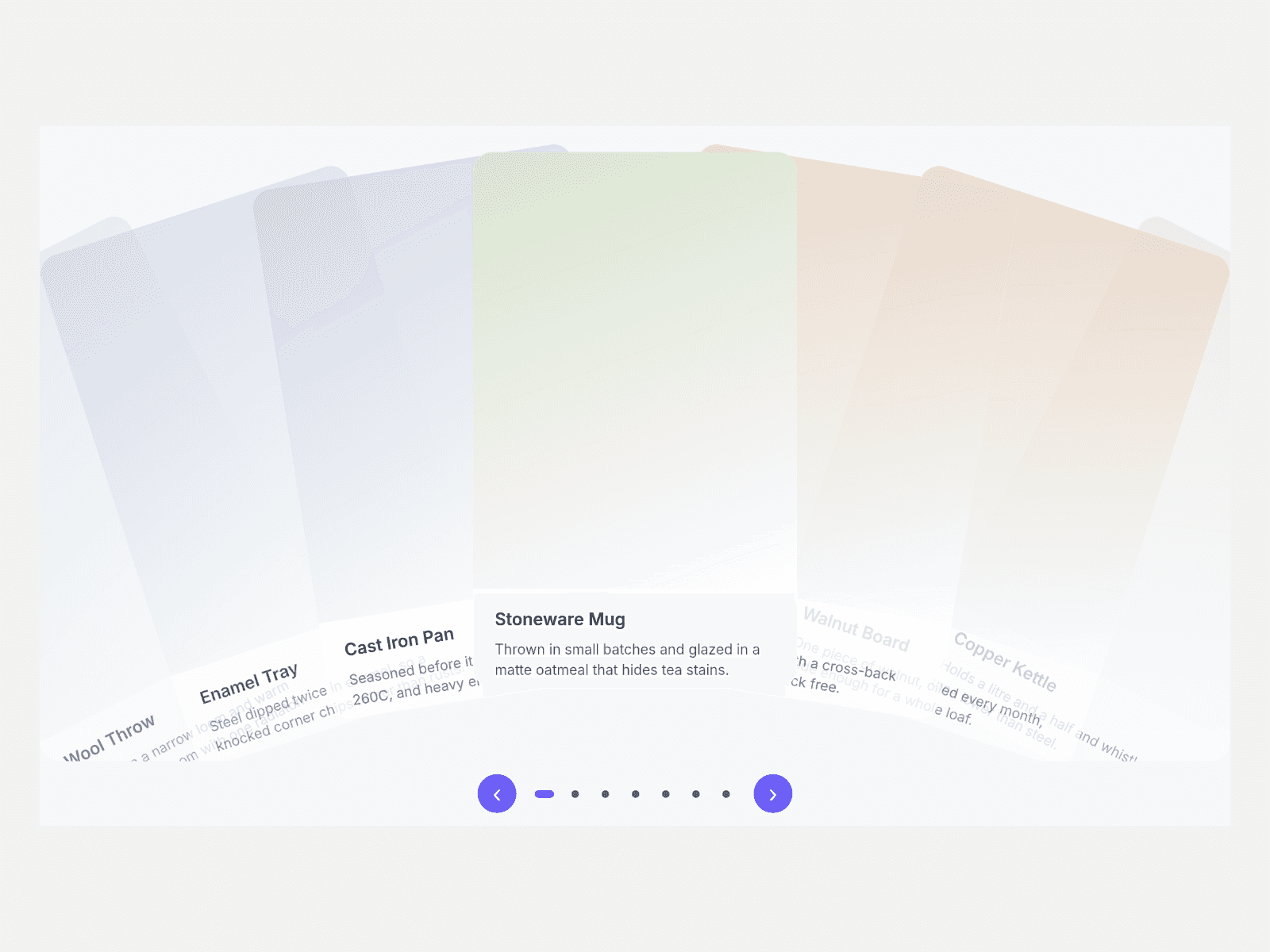
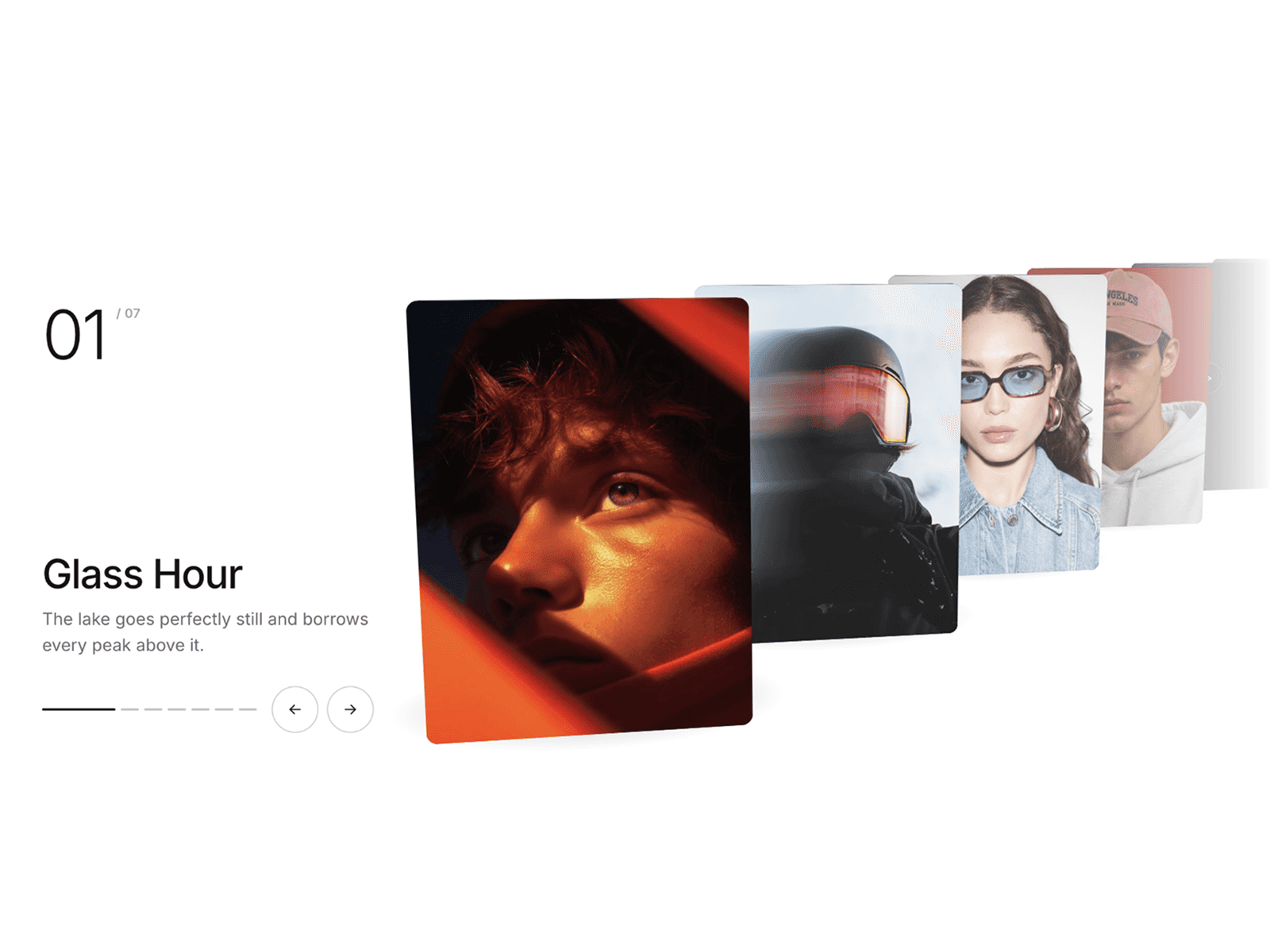
About Screen Stage
Use it with CMS in three steps: 1. Drop a Collection List into Screens (CMS) and turn off its Pagination. 2. In the item, add an image or video layer named Media, plus text layers named Title and Caption. 3. Every item becomes one screen on the stage; the caption shows its Title, Caption and the item's link, and the dots follow the item count.
Screens (CMS) reads each item and draws it on the device screens itself, so your list stays untouched. The list is hidden after reading, so a Load more button is not shown.
Your product screens in generic laptop, tablet and phone frames; every device shows the same screen.
Key features
- The Media layer fills the screen. Turn Fill With Media off for Whole item: a copy of the CMS item is shown as you designed it (static, no hover or interactions).
- Videos from the Media layer play muted, only on the active screen and only while the stage is on screen.
- Autoplay with a pause button; it pauses on hover and focus.
- Previous, next and one dot per screen, plus arrow keys, Home and End.
- Reduced motion respected.
What you control
- Screens (CMS) slot, layer names for Title, Caption and Media, or hand-made Items
- Devices: laptop, tablet, phone or a pair; fit cover or contain
- Autoplay, interval, fade or slide, and Duration for every transition
- Caption, controls, heading level, colours, font, size and labels
The canvas shows the Collection List as you built it; the stage runs in Preview and on the published site.