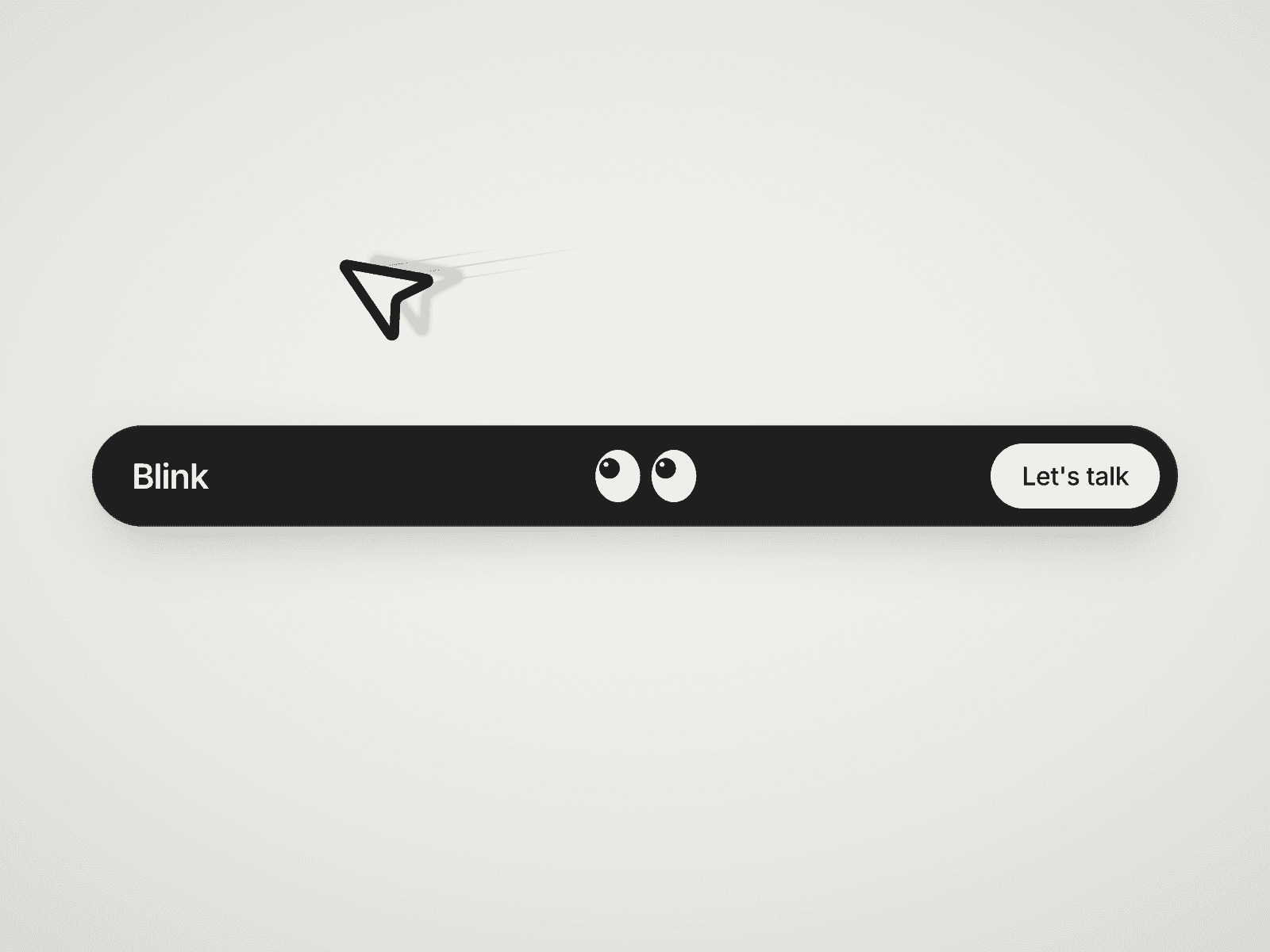
About Drag Preventer
Ever had someone accidentally drag an image off your site, pull a link into the browser bar, or move highlighted text into another tab?
Drag Preventer solves that in seconds.
Drop this invisible component into your Framer project and it quietly blocks common drag behaviors across your entire site. No CSS files, no wrappers, no custom code, just one helper component that injects the required rules automatically.
It’s the fastest way to add drag prevention, image drag blocking, and link drag prevention to your Framer site without touching code.
Instructions
Copy and paste the Drag Preventer component into your Framer project.
Place it inside your Desktop layer or any top-level frame. The component renders invisibly, so its exact visual position does not matter.
Option 1: Individual Page
Paste the component under the Desktop Frame (top level, not inside content).
Option 2: All Pages (Site-wide)
Create a Template in the right panel (on Desktop Frame).
Paste the component above the placeholder content.
All pages using the template will inherit the Drag Preventer.
Set position to Absolute, top/left = 0, and Z-index = 0.
Open the right-hand property panel and enable the drag prevention settings you want.
Publish your site, the rules activate automatically.
Tip: Place it once inside a template layout it applies across your entire site.
How It Works
Drag Preventer includes five simple toggles that control different types of drag behavior.
Properties Control
Block All Dragging: A master switch that disables drag interactions across the entire page.
Block Image Drag: Prevents visitors from dragging images into a new tab or onto the desktop. This helps protect visual assets and improves presentation.
Block Link Drag: Stops links and buttons from being dragged into bookmarks or new tabs. This prevents unintended navigation behavior.
Block Text Drag: Prevents highlighted text from being dragged to another window or application. Visitors can still select and copy text normally.
Block Text Select: Completely disables text selection across the page. This setting works independently and can be combined with other drag prevention options.
Important Note
Drag Preventer blocks drag-and-drop interactions only. It does not stop right-click saving, keyboard shortcuts, or access to browser developer tools. Its purpose is to prevent casual drag behavior and improve UX without adding complexity.
Features
Granular drag prevention: Block images, links, text drag, or everything with a single toggle.
Independent text selection control: Disable text highlighting separately from other drag settings.
Zero-code setup: All controls are available directly inside Framer’s property panel.
Lightweight script: A lightweight style rule is applied across the entire site from one component.
Fast setup: Drop it into your Desktop layer and enable the desired toggles.
Cross-browser support: Compatibility across modern browsers.
Device and breakpoint compatible: Rules apply consistently across desktop, tablet, and mobile screens.
Use Cases
Portfolio websites: Prevent visitors from dragging images directly from your portfolio.
Landing pages and SaaS sites: Stop links and buttons from being accidentally dragged into bookmarks.
Presentation-style websites: Disable text selection for a cleaner, app-like experience.
Client demo projects: Prevent accidental drag interactions during walkthroughs or presentations.
Framer templates and demos: Reduce easy asset extraction from public preview sites.
Interactive prototypes: Ensure users interact with buttons and links as intended without accidental dragging.
Made with ❤️ by Soyeb
Refund Policy: Due to the digital nature of these components, all sales are final, and once delivered they cannot be returned or refunded. Please review product details and demos before purchasing, and feel free to reach out if anything is unclear.
Have questions or need a custom Framer component? Reach out at heysoyebali@gmail.com